Hayley McAllister, Senior Counsel and Head of Commercial Legal at Jasper, described what changed when her team figured out how to have AI review a Word document directly:
“Once the Word plugin rolled out, I pretty much exclusively started using it for all of my redlining and contract review.”
That word “exclusively” carries the story. She had been using GC AI on the web and transferring results into documents manually. When the GC AI for Word Add-in dropped into her sidebar, the manual step disappeared. The AI was already where the work was.
For in-house lawyers who spend most of their day in Microsoft Word, that is the whole answer. Legal AI review runs inside the document, in a sidebar that stays open alongside the contract.
Here is how to do it.
What You Can Do in Word Today: Your Options
Before the prompts, here’s what’s happening. Having AI review a Word document can mean four different jobs in 2026, and the right tool depends on which one you need.
Native Microsoft 365 Copilot. If your company runs Microsoft 365, you may already have Copilot in Word. It drafts, rewrites, and summarizes well, and it can now generate a Review Summary of every unresolved tracked change and comment in a document. What it was not built to do is legal review: no legal training, no jurisdictional awareness, no playbook standards, and the underlying models can hallucinate citations, so it is not a safe shortcut for facts or conclusions. Licensing runs $18 per user per month for Copilot Business (rising to $21 on July 1, 2026) or $30 per user per month for the Enterprise plan, each on top of a qualifying Microsoft 365 license, as of June 2026. Our Copilot for Lawyers in 2026 guide compares the Legal Agent with Microsoft 365 Copilot.
Microsoft’s Word Legal Agent. Launched April 30, 2026 through Microsoft’s Frontier early-access program, this is the legal-specific layer: clause-by-clause review against a playbook you supply, native tracked-change redlines with rationale comments, and citations linked back to the source text. The catch as of June 2026 is availability, still Frontier preview, US users only, Windows desktop only, and it requires a Microsoft 365 Copilot license. Microsoft states it does not provide legal advice.
General chatbots (ChatGPT, Claude). Both can read a contract you paste or upload and reason about it well. The output lands in a chat window, and you re-apply it to the document by hand, with no tracked changes and no legal-specific workflows.
Purpose-built legal AI in Word (GC AI for Word). A legal AI sidebar that lives inside the document, runs agentic Playbooks against your own standards, and writes changes back as tracked redlines with character-level citations. That is the worked example for the rest of this guide, and the prompts below work on any capable tool, so you can run the same test on whatever you already have.
How AI Reviews a Word Document for Legal Work
Legal AI reviews a Word document for legal work by reading the full agreement and returning structured analysis tied to the source language: flagged clauses, tracked redlines organized by legal priority, and issue-by-issue commentary with the source clause cited for every finding.
The review runs against the context you provide, whether that is your client’s negotiating position, your company’s standard terms, or a pre-built set of legal standards. The output is analysis a lawyer can act on.
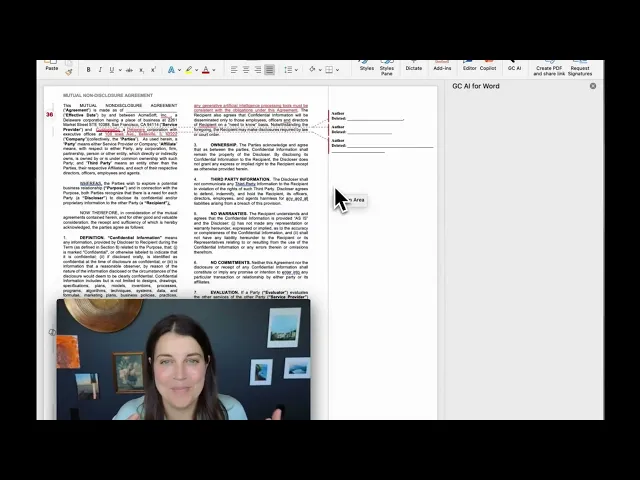
GC AI for Word adds a legal AI sidebar directly inside Microsoft Word. Open a contract, activate the sidebar, and run a prompt. GC AI reads the document and returns the analysis as tracked changes, right in the document you are already working in.
To use AI to review a Word document for legal work:
Install GC AI for Word as a Microsoft Word Add-in.
Open the contract in Word and activate the GC AI sidebar.
Run a structured prompt from the six workflows below.
Review the tracked changes GC AI returns directly in the document.
GC AI is purpose-built for legal work. It surfaces what in-house lawyers care about: termination rights, auto-renewal traps, liability caps, indemnification asymmetry, and missing standard clauses.
According to the ACC Law Department Management Benchmarking Report, nearly half of corporate legal budgets go to outside counsel spend. Every hour a lean legal team reclaims from internal document review is a direct budget lever.
GC AI for Word includes Exact Quote for character-level citations, Playbooks for agentic contract review, the Skill Library for ready-to-use legal workflows, Easy Prompt for converting plain-language requests into optimized prompts, and Chat2 for live web research, all inside a sidebar that stays open while you work. Every output lands as tracked changes.
How to Use AI to Review a Word Document: Six Legal Workflows
In-house lawyers use AI to review Word documents by running structured prompts against the contract: an orientation pass to map the agreement, targeted redlines from the client’s perspective, counterparty review of incoming changes, and a Playbook sweep for higher-stakes agreements. Each workflow returns tracked changes inside the document.
The six workflows below come directly from GC AI’s AI in Word class, one of the free, California CLE-eligible classes in GC AI’s curriculum. Each covers a specific in-house legal task, from first-read contract orientation to full agentic Playbook review.
Orient yourself to a contract
Redline a contract from your client’s perspective
Research on the web, then redline in Word
Review counterparty redlines and changes
Compile and summarize document comments
Run an agentic Playbook review
Orient Yourself to a Contract
Start every contract review with an orientation prompt. This gives you a structured summary before diving into any specific issue.
Prompt from GC AI’s AI in Word class:
“Please orient me to this contract. What are the key provisions, obligations, and important dates I should be aware of?”
GC AI returns a structured summary organized by provision type, typically 8 to 12 categories for a standard commercial agreement: payment terms, IP ownership, termination rights, auto-renewal language, indemnification obligations, and data processing terms, each with the source clause cited.
The termination section will tell you whether vendor termination for convenience is permitted and what the notice period is.
Ask a follow-up question in the sidebar to drill in: “What is the notice period for termination?” or “Does this have an auto-renewal clause?” resolve in seconds.
This is the fastest first-pass review available. A lean legal team reviewing 10 to 15 contracts per week can orient to each in minutes.
Redline a Contract from Your Client’s Perspective
Redlining is where in-house lawyers spend most of their contract review time. GC AI handles it directly in Word: specify the perspective, the priorities, and the deal terms, and it generates tracked changes throughout the document.
Prompt from GC AI’s AI in Word class, adapted for a SaaS subscription agreement from the customer side:
The output appears as standard tracked changes throughout your Word document: every deletion struck through, every insertion underlined. You accept or reject each change directly in Word. For a SaaS subscription agreement reviewed from the customer side using the prompt above, GC AI marks up payment terms, removes auto-renewal language, adds data breach notification obligations, and adjusts liability language, each change driven by the priorities in the prompt.
The specificity of that prompt is the key. The more context you give GC AI about your position and your company’s standard terms, the closer the first-pass redline is to what you would have marked up yourself.
Cameron Clark, Head of Legal at Arc’teryx:
“What used to take an hour, like reviewing contract feedback and drafting a reply, now takes ten minutes, and the results are better.”
Research on the Web, Then Redline in Word
GC AI for Word includes Chat2 integration: web research runs in the GC AI web app, and the results pull directly into Word with one click. The workflow runs in three steps.
Step 1: Research in the web app. Upload the document and run a research prompt. From GC AI’s AI in Word class, using an employment policy as the example:
“Attached is our US Anti-Discrimination and Harassment Policy, last updated in March 2022. Please research legislative and regulatory changes since that date and give me a concise summary organized by heading, with no more than five bullet points per heading.”
Step 2: Request required revisions.
“Based on the research above, provide bullet points organized by heading of revisions required to comply with the updates found. Include only required changes.”
Step 3: Redline in Word. Open the document in Word. Pull the chat history into the sidebar. Run:
“Please redline this policy to reflect the required changes from the chat above.”
The research summary from Step 1 organizes findings by your document’s own section headings. The revision list from Step 2 covers only required changes, keeping the output focused. GC AI generates the tracked changes in Step 3. You review and accept each change in place. Easy Prompt works in Word the same way it works on the web, and the chat history carries over seamlessly between windows.
Review Counterparty Redlines and Changes
Counterparty redlines arrive as a marked-up document with dozens of changes, a mix of tracked revisions and comments, requiring a rapid judgment call on each: accept, push back, or negotiate.
Prompt from GC AI’s AI in Word class:
“Review the customer’s changes and comments. Provide a summary of their changes and tell me whether these are changes we should accept or push back on, with your rationale.”
GC AI identifies the parties automatically, reviews each marked change in context, and returns a structured recommendation: for each counterparty change, what was modified, whether to accept or push back, and the rationale grounded in the document’s own language. Alexandra Sepulveda, Assistant General Counsel at Trust & Will, described her version of this workflow:
“Imagine a redline comes back asking for unlimited indemnity. I’ll tell GC AI: ‘Here’s the clause and why we can’t accept it. Draft a four-sentence response to sales: collaborative tone, options to move forward.’”
That takes three minutes.
Compile and Summarize Document Comments
Documents with multiple rounds of internal review accumulate comments quickly. Pulling those into a summary for a business stakeholder is one of the tasks that eats an afternoon if done manually.
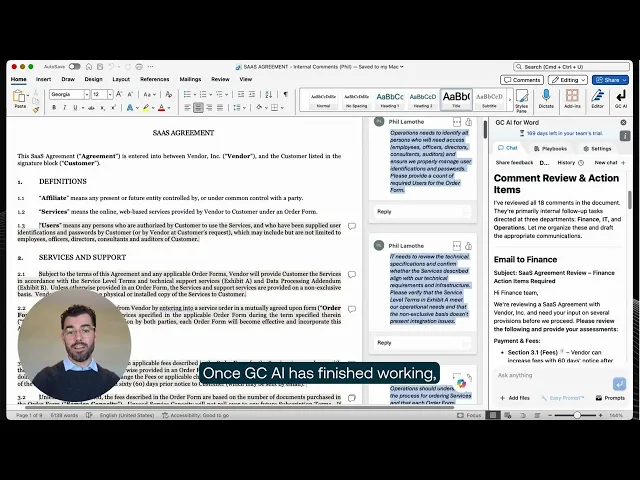
GC AI’s Comment Compiler prompt handles this from inside Word. Open the document, run the Comment Compiler from the Skill Library, and GC AI returns a structured summary of all comments and tracked changes organized by issue or section. Dozens of reviewer comments condense into consolidated action items: the issue, the relevant clause, and the reviewer context. The output copies directly into a deal memo or email to the business team.
Run an Agentic Playbook Review
Playbooks are GC AI’s agentic contract review feature: pre-built, multi-step workflows that run the full document against a defined set of legal standards. GC AI ships pre-built Playbooks for NDAs, DPAs, MSAs for SaaS, and MSAs for commercial purchases.
Inside Word, run the NDA Playbook on a mutual non-disclosure agreement and GC AI will review every relevant clause: confidentiality scope, permitted use, exclusions, term and termination, return of information, and carve-outs, against market standards. Each flag includes the source language, the recommended position, and the rationale.
The full report appears in the sidebar alongside your document: each clause category assessed, flagged language cited verbatim, recommended position stated, and rationale explained. Playbooks in Word are the closest thing in-house legal has to an agentic first-pass reviewer that has read the entire NDA and handed you a marked-up summary before you started.
Which Documents GC AI Reviews Well in Word
GC AI for Word handles most of what an in-house legal team reviews every week: NDAs, MSAs, SaaS subscription agreements, employment contracts, vendor agreements, and DPAs. The six workflows above apply directly to standard text-based commercial agreements.
A few situations where you will want to supplement:
PDFs and scanned documents. GC AI for Word works with Microsoft Word (.docx files). For PDFs, upload to the GC AI web app’s Files feature, which accepts up to 1,500 pages. Run the analysis there, then pull results into Word using Chat2’s chat history. Documents scanned as images need OCR first to extract the text layer before uploading.
Context outside the document. If your negotiating position depends on relationship history not in the document, include that context in your prompt. GC AI works from what is in the document plus what you tell it.
Image-embedded data. Contracts where critical terms are formatted as embedded images or charts will not be fully readable. Convert those to text before running a review.
For any AI document review, the output is a first-pass analysis. Lawyer judgment is the final layer. For AI document review across PDFs, email chains, and other formats beyond Word, see our guide on AI Legal Document Review.
GC AI for Word vs. Other Legal AI Tools
Three legal AI tools come up most often when in-house lawyers look for document review in Word: Copilot (already bundled in most M365 tenants), ChatGPT (familiar from daily use), and Claude (strong on long-context reasoning). Each can process a contract. None of them was built for the Word workflows in-house counsel runs.
vs. Microsoft Copilot
Microsoft Copilot in Word handles general-purpose writing tasks: drafting paragraphs, summarizing documents, rewriting in a different tone. It was built for Word users broadly.
GC AI for Word was built for in-house legal teams. The difference shows up in the outputs: Copilot summarizes a contract the way a smart generalist would; GC AI surfaces what a lawyer cares about, including termination traps, liability caps, and indemnification asymmetry. Copilot can link you to relevant sections within a document. Exact Quote reproduces the precise clause language verbatim, so every flag cites the exact words in the agreement.
Same prompt, two outputs. Run “review the indemnification and liability provisions and flag anything off-market” on a vendor MSA. Copilot returns a fluent prose summary of what the clauses say, with no position on whether the 3x liability cap is defensible and no redline. GC AI returns tracked changes against your playbook: the limitation of liability clause marked up to your standard, the indemnification asymmetry flagged with the source language quoted verbatim, and a one-line rationale on each. One describes the contract; the other edits it.
vs. ChatGPT
ChatGPT can review a Word document if you upload it or paste the text into the web app. The output arrives as a chat response. You read it and apply any changes to your document manually. Third-party add-ins connect ChatGPT to Word, but they generate no tracked changes and run no legal-specific workflows.
For in-house lawyers, the more pressing consideration is data handling. ChatGPT’s free tier retains chat data for model training by default. For documents with client data, confidential deal terms, or privileged communications, that creates an ethics exposure under state bar technology-competence rules. ChatGPT for Lawyers covers the full privacy landscape and what the U.S. v. Heppner ruling changed.
vs. Claude
Claude accepts Word document uploads and returns analysis in the chat interface. It handles long contracts well and reasons carefully through complex clause structures. For legal questions, the output quality is strong.
The gap is workflow, not reasoning. The output stays in the chat window, and you apply it to your document manually, with no tracked changes and no legal-specific Playbooks. The choice between Claude and GC AI for Word is not about which model reasons better. It is about whether you want analysis in a chat window or changes applied inside your document.
For a dedicated comparison, see GC AI vs. Claude. For a broader evaluation of legal AI platforms for in-house counsel, see Best Legal AI Tools for In-House Counsel. For a side-by-side comparison of the leading legal AI tools built specifically for Microsoft Word, see The 4 Best Legal AI for Word for In-House.
Laura Knight, VP Legal at Secure Code Warrior, after running her own evaluation:
“GC AI’s Word Add-in is in a class of its own compared to other legal AI tools I have evaluated.”
GC AI is an enterprise-ready legal AI platform built for in-house legal teams. More than 2,100+ legal departments use GC AI, including teams at 200+ public companies. GC AI Academy has trained more than 6,000 lawyers through free, California CLE-eligible courses on applying AI to legal practice, including the AI in Word class that covers the six workflows above.
For in-house teams evaluating AI in Word, the practical test: open a contract, run the orient prompt, ask for a redline, and check whether the output reflects the issues a lawyer would flag.
GC AI’s AI in Word class is the fastest way to run that test with guidance. It is free, California CLE-eligible, and runs one hour.
For teams comparing the broader legal AI market, GC AI has published evaluation guides on Spellbook alternatives and Harvey alternatives for in-house counsel.
How to Evaluate Any AI Word Add-in
Whatever tools make your shortlist, run each one through the same checks on a real contract from last week:
Does it write back into the document? Tracked changes you can accept or reject, not a chat summary you re-type.
Does it cite source language at the character level? A flag you can verify against the exact words beats a paraphrase that sends you back to re-read the clause.
Can it run your playbook? Your NDA positions, your DPA red lines, your MSA red flags, applied the same way every time by anyone on the team.
Is it built for legal? Ask it to flag an asymmetric indemnification clause or a missing limitation of liability cap. A generalist tool summarizes; a legal tool takes a position.
What happens to your data? Look for SOC 2 Type II, a signed DPA, and zero data retention with the underlying model providers before any privileged document goes near it.
Is it available on your setup today? Mac or Windows, generally available or preview-gated, US-only or global. A capable tool you cannot install is not really on your shortlist.
Frequently Asked Questions
How Do I Use AI to Review a Word Document for Legal Issues?
Upload the document to a legal AI platform with a Word Add-in, such as GC AI for Word. Open the document in Word, activate the sidebar, and run an orientation prompt: “What are the key provisions, obligations, and important dates in this contract?” For redlines, specify your perspective and the terms that matter most. GC AI returns tracked changes you can accept or reject clause by clause. Always verify outputs against the source document before finalizing any legal position.
What Is the Best AI for Reviewing a Word Document for Contracts?
For in-house legal teams, GC AI for Word is purpose-built for contract review inside Microsoft Word. It includes redlining, counterparty review, Comment Compiler, Playbooks for NDAs and MSAs, and Exact Quote for character-level citations. GC AI offers a 14-day free trial at auth.gc.ai/sign-up with no credit card required. See the full evaluation criteria in GC AI’s AI Contract Review guide.
Can I Use AI to Review a Word Document for Free?
GC AI offers a 14-day free trial with no credit card required, which includes full access to GC AI for Word. GC AI’s AI in Word class (Class 105) is free and open to anyone, no trial required, and covers the six core Word workflows for in-house counsel.
Is It Safe to Upload Legal Documents to AI Tools?
It depends on the platform. GC AI is SOC 2 Type II and SOC 3 certified, GDPR compliant, with zero data retention agreements with OpenAI and Anthropic, and AES-256 encryption. General-purpose tools like the free tier of ChatGPT offer different, more limited data protections, often with data retained for model training by default. For documents that include client data, confidential business information, or privileged communications, use a platform with a signed data processing agreement and zero data retention. For guidance on AI tool evaluation under attorney ethics rules, see ABA Formal Opinion 512 on technology competence obligations.
What Prompts Should I Use When Having AI Review a Legal Document?
Start with an orientation prompt: “What are the key provisions, obligations, and important dates in this contract?” For redlines, specify your perspective and the terms most important to your position. For counterparty review: “Review the customer’s changes and tell me which to accept and which to push back on, with rationale.” GC AI’s Skill Library includes ready-to-use prompts for all of these workflows.
How Is GC AI for Word Different from Using Copilot in Word?
Standard Copilot in Word is a general-purpose writing assistant. Microsoft launched a Legal Agent for Word in April 2026 (Frontier preview, US Windows desktop only, not generally available as of May 2026) that does playbook-driven contract analysis and negotiation-ready redlining. GC AI for Word is available now to all customers and was built specifically for in-house legal departments: Exact Quote cites back to character-level source language, Playbooks run agentic review against the team’s own standards, and the Comment Compiler handles multi-reviewer consolidation. These are workflows the Copilot ecosystem does not yet offer at general availability. For a full comparison of legal AI platforms, see Best Legal AI Tools for In-House Counsel.
Can ChatGPT Review a Word Document?
ChatGPT can review a Word document if you upload the file or paste the text into the web app. The output arrives as a chat response, and you apply any changes to your Word document manually. For a quick one-off question about a clause, ChatGPT works. For systematic contract review with tracked changes and legal-specific Playbooks, GC AI for Word runs inside the document from the start.
Can Claude Review a Word Document?
Claude accepts Word document uploads and returns analysis in the chat interface. It can summarize a contract or answer questions about specific clauses. Like ChatGPT, the output stays in the chat window. You apply results to your document manually, with no tracked changes and no Playbooks. GC AI for Word keeps the AI inside the document with legal-specific workflows and tracked-changes output.
How Does GC AI for Word Compare to Microsoft’s Legal Agent?
Microsoft launched a Legal Agent for Word in April 2026 through its Frontier preview program. Available via the Copilot agents dropdown in Word, it handles playbook-driven contract analysis, negotiation-ready redlining with tracked changes, and source citations for verification. As of May 2026, it is available only on Windows desktop in the US through the Frontier program, not generally available.
GC AI for Word is available now to all customers across web, Mac, and Windows. Exact Quote provides character-level citations, Playbooks run agentic review against the team’s own standards, and the Comment Compiler consolidates multi-reviewer notes. No preview program required.
Does AI Document Review Work on PDFs as Well as Word Files?
GC AI for Word works inside Microsoft Word (.docx files). The GC AI web app accepts PDFs and can process up to 1,500 pages at once via the Files feature. For a PDF-to-Word review workflow, upload the PDF to the web app, run the analysis there, and pull results into Word using Chat2’s chat history.
Do I Need to Validate AI Output After Reviewing a Document?
Always verify AI outputs against the source document before acting on them. GC AI’s Exact Quote feature cites back to the exact character-level language it referenced, reducing the verification burden. For anything that affects rights, deadlines, liability, or negotiated language, a human legal review should follow the AI’s first pass. Use AI as your first-pass reviewer, and lawyer judgment as the validation layer.
Can Microsoft Copilot Review a Contract in Word?
Microsoft Copilot can summarize a contract, answer questions about it, and help draft language inside Word, but it is not purpose-built for legal contract review. Standard Copilot returns prose summaries rather than tracked redlines against a legal playbook, and Microsoft’s own terms note the tool may produce inaccurate output. For playbook-enforced redlines with character-level citations, a purpose-built legal AI add-in is the stronger choice.
How Much Does Microsoft 365 Copilot Cost for Legal Teams?
Microsoft 365 Copilot is an add-on license on top of an existing Microsoft 365 subscription: $18 per user per month for Business plans (rising to $21 on July 1, 2026) and $30 per user per month for Enterprise, as of June 2026 (microsoft.com/microsoft-365-copilot/pricing). That cost does not include a dedicated legal review playbook engine. GC AI for Word adds purpose-built contract review on top of your existing workflow, with a 14-day free trial at auth.gc.ai/sign-up.
What AI Tools Can Lawyers Use in Word Without Installing an Add-In?
If your organization has a Microsoft 365 Copilot license, Copilot is already available inside Word for drafting and summarizing. Without that license, lawyers typically paste contract text into ChatGPT or Claude in a browser tab and prompt for a review. Both approaches lack playbook enforcement, tracked-changes output, and the citation fidelity that purpose-built legal AI add-ins provide.